The difference in Windows and Linux mentality explained.


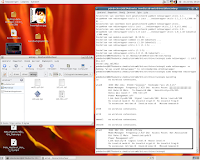
These screenshots were taken when converting an image. While the average Windows user prefers a GUI to convert images, Linux power users prefer to do it quick and dirty using the command line.
(That of course doesn't mean that you can't use a GUI to do it.) It's accessible versus quick.
Labels: difference, Linux, mentality, Windows
[Howto] Turn your iPod into a video player/gaming station
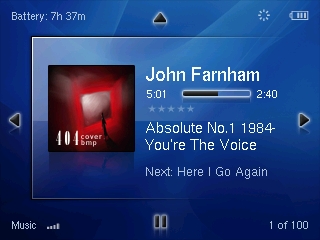
Do you have an iPod and are you sick an tired of playing the same games over and over? Or do you have a 1st-generation Nano and would like to play videos on that thing? It's possible with
Rockbox! Rockbox is an open-source project that aims to be an alternative to your iPod OS. It's not aniPod-only thing though, see their website for details. In this howto we're going to install a modded version of Rockbox that contains someextra features and has a nicer theme.
What are the benefits?- Your iPod will be highly customizable
- You can play videos (MPG only for now)
- You get some extra games
- You can play any .gb or .gbc ROM on your iPod
- You can just drop MP3s onto your iPod and play them
- You don't have to use iTunes
- You can play OGG files
- You can keep using your default iPod OS
- You can uninstall it anytime you want
Disadvantages- You cannot use iTunes manage your Rockbox stuff
- You cannot play files that you bought at the iTunes Store
- You won't see which podcasts you've played and which not
Requirements- iPod Nano (1G) / iPod Video (5G)
- The Rockbox base package:
iPod Nano /
iPod Video- The Rockbox themes package:
iPod Nano /
iPod Video- The Rockbox bootloader installer:
Windows /
Linux 32-bit /
Linux 64-bit (AMD) /
Mac OS XInstalling
- If you're on Windows, make sure that iTunes.exe, iTunesHelper.exe and iPodService.exe
are not running. If they are, kill the processes with Windows Task Manager.
- If you're on a Mac, make sure that all iTunes-related processes are killed.
- Connect your iPod to your computer.
- Extract the base package in the root folder of your iPod. You should see a directory called .rockbox and a file called rockbox.ipod. If you're on Linux, you'll probably not see .rockbox as it's set to be hidden. To make sure that it's there, do
cd /path/to/your/ipod/.rockbox. If you don't get an error saying the directory doesn't exist, the folder was extracted successfully.
- Open the theme package. You should see a folder called .rockbox. Extract the archive in the root folder of your iPod.
- Now we're going to install the bootloader. This will make sure that your iPod can actually
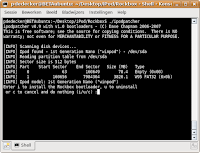
boot Rockbox. Download the installer for your OS. No matter what OS you're working with, it comes down to opening the file and choosing to install the bootloader. If you're on a Linux platform, you might have to do
chmod a+x bootloader before you can run the installer.
- Disconnect your iPod and reboot it by pressing MENU+CENTER a couple of seconds. You should see the Apple logo appear. Shortly after that, Rockbox will boot.
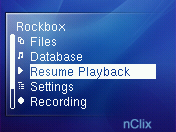
- If the interface looks ugly, you'll need to set jClix (iPod Video) or nClix (iPod Nano) as your default theme. You can do this by going to Settings > Browse themes.
- That's it, enjoy!
Podcasts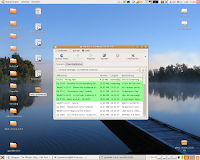
Although Rockbox can play podcasts, it doesn't have the played/unplayed functionality that the iPod OS has. It won't allow you to resume a podcast where you left off either. If you're an advanced user, you might consider adding "New podcasts" and "Archived podcasts" submenus to the "Database" menu. More information about messing with the database can be found on the Rockbox wiki. You can still use a program like
gPodder (Linux only) in filesystem mode to put your podcasts in a subdirectory on your iPod (for example: Podcasts). In Rockbox, go to the "Files" menu and select the Podcasts folder.
Converting videos for use with RockboxYou'll have to convert all your videos to the MPG format before Rockbox can play them. This has its disadvantages. However, since the display of a Nano/Video isn't that big, you can save a huge amount of space just by reducing the width and height of the movie. Usually, this can be done in one step. On Windows, you might want to try
SUPER. Linux users can use mencoder. If you're using Ubuntu or a derivative, just do
sudo apt-get install mencoder in a terminal. After you've installed mencoder, enter:
(If you have an iPod Nano)
mencoder "/path/to/your/video/" -o "/path/to/your/converted/video" -of mpeg -oac lavc -lavcopts acodec=mp2:abitrate=192 -af resample=44100:0:0 -ovc lavc -lavcopts vcodec=mpeg2video:vbitrate=100 -vf scale,harddup -ofps 25 -zoom -xy 176
(If you have an iPod Video)
mencoder "/path/to/your/video/" -o "/path/to/your/converted/video" -of mpeg -oac lavc -lavcopts acodec=mp2:abitrate=192 -af resample=44100:0:0 -ovc lavc -lavcopts vcodec=mpeg2video:vbitrate=250 -vf scale,harddup -ofps 25 -zoom -xy 320
This command will convert the video
/path/to/your/video to
/path/to/your/converted/video and reduce the video bitrate to
100/250 and the width to
176/320 pixels. The height will be reduced in relation to the width, so don't worry about that. If you find that the quality of your video is too low, replace the value after
vbitrate= with a higher value. Remember to keep in mind that a higher bitrate will increase the file size of the video.
UninstallingHad enough of Rockbox? Not a problem! It's even easier to uninstall
Rockbox than to install it.
- Remove .rockbox and rockbox.ipod in the root directory of your iPod.
- Run the bootloader installer again, but this time choose to uninstall.
- You're done!
FAQ-
Where can I find the games? They're in the Plugins menu. I recommend
jewels (a
Bejeweled clone) and
bubbles (a
Frozen Bubble port)
-
Is this legal? The people behind the Rockbox project assure you that this is legal. For more information about this, click
here.
-
Will it void my warranty? Perhaps. If possible, uninstall Rockbox before sending your iPod back to Apple for repair. If you're not able to access your iPod anymore, they probably won't either. -
More info
-
Are there any known incidents where Rockbox destroyed someone's iPod? No.
-
Can Rockbox read my iTunesDB? No.
-
Can I keep using the default iPod OS? Yes. To boot the default OS, enable the Hold switch when the Apple logo appears.
TroubleshootingiPod not responding? Unable to boot the iPod OS or Rockbox? Blank screen? Can't access your iPod with your PC? Don't panic, there's a solution for this that works 99% of the time.
- Check if your Hold switch is enabled. If it is, slide it to the other side.
- Keep holding MENU+CENTER until you see the Apple logo.
- When the Apple logo is shown, hold CENTER+PLAY until you see a "Do not disconnect" message.
- Connect your iPod to your PC and uninstall Rockbox.
- If it still doesn't work, go to the Rockbox or Apple forums to get assistance.
I've only been able to test this with a 1G iPod Nano on Kubuntu (Linux). I can't be held responsible for anything that goes wrong.Labels: game, games, iPod, Linux, Mac OS X, mod, Rockbox, video, Windows
[Games] Super Mario with a Tux twist


SuperTux is based on the Super Mario formula that we all came to know and love but it has a Tux twist to it, like many Linux games have. Make your way through levels with walking ice cubes, bouncing snow balls and more as you try to rescue Tux's kidnapped girlfriend
(?). The current stable version is 0.1.3, but I've had no problems using the unstable 0.3.0 version on Kubuntu, which includes a whole new island called Forest Island
(see second screenshot).
Download (0.3.0): Windows / Linux*
Download (0.1.9): Windows / Linux
Website: http://supertux.lethargik.org/
Free and open-source
* Some distributions (such as Ubuntu) have included SuperTux v0.3.0 in their repositories. You can download it by doing sudo apt-get install supertux in a terminal.
Labels: game, games, Linux, Super Mario, Tux
[Linux] Playing music from the command line

If you prefer command line software over graphical software because it's faster and only requires a keyboard, you might like this. Using the
mplayer command, you can play almost anything from the command line. It works for many popular file types such as MP3, OGG, WAV and most internet streams.
However, keep in mind that depending on what file format you want to play you may need to install additional codecs. Please consult the manual of your distribution for more information about this.
First, check if mplayer is installed on your system. On Debian and derivatives (such as Ubuntu), type:
dpkg -l mplayer
If dpkg doesn't return any result, you'll need to install the mplayer package first. On many distributions, this can be done by typing in
sudo apt-get install mplayer.

Now, to play a file with mplayer, type:
mplayer /path/to/file
To abort playback, press CTRL+C. There's also graphical version of mplayer that can play videos. To open it, enter
mplayer without arguments.
Website: http://www.mplayerhq.hu/Labels: audio, command line, console, Linux, media, video
[Howto] Wireless networking on Linux
As I said
before, a lack of wireless support is one of the biggest disadvantages of Linux. Today we're going to take a look at some ways to get your Wifi card working if your distribution doesn't detect it automatically.
The least technical way: try a different distributionNot all Linux distributions have equal wireless support. For example, both openSUSE and Fedora Core weren't able to detect my wireless card so I had to install the driver manually using my Windows driver
(see further). On the other hand: Ubuntu and Kubuntu immediately detected it without me having to deal with the command line. You should always check the list supported wireless cards for your distribution first
(if any, but most distros have such a list). Is your card not listed? Don't panic! Perhaps it hasn't been tested yet so maybe you should. Make sure that you add your card to the list if you get it to work.
The most effective way: using your Windows driver under LinuxThis method should work for most people, but requires you to do some commandline stuff. First of all, you'll need to download
ndiswrapper. Sometimes this package is installed by default, sometimes it can be installed from your distribution's installation CD/DVD and sometimes you'll just have to download it yourself.
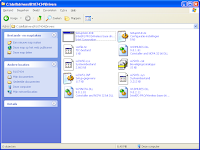
Secondly, you'll have to find the Windows driver for your Wifi card. You can download it from the website of your card manufacturer. If your driver's a .exe file, extract it with
7-Zip (Windows/Linux) or a different program that can extract
.exe files. When done, open the folder with the contents of the
.exe file and search for a folder that contains both a
.inf and a
.cat file. When you find that folder, copy all its contents some place you can access under Linux. Boot Linux and install the ndiswrapper package if you haven't done so already.
Open a terminal window and go to the directory where the
.inf file - along with the other driver files - is stored. For example:
cd /home/pdedecker/Desktop/WirelessDriver
Of course you'll need to replace
/home/pdedecker/Desktop/WirelessDriver with the path to the directory. Put quotes before and after the path if it contains spaces.
Then, enter:
sudo ndiswrapper -i myDRIVER.inf
Replace
myDRIVER.inf with the name of your driver's
.inf file. After entering the root password, you should get the message "
Installing myDRIVER..." (where
myDRIVER is the name of your driver). We only need to enter two more commands:
sudo ndiswrapper -m
sudo modprobe ndiswrapper
To see if your card got installed correctly, do:
iwconfig
If you see a device called
wlan0 (or something similar), you've successfully installed the driver. Use the wireless configuration tool that comes with your distro to configure your card.
 The old-skool way: search Google
Still no luck? Search Google; you might just find what you need. However, these drivers may be hard to install since you usually have to compile them yourself. If you're lucky, they offer a
.deb (for Debian, Ubuntu and related distros) or a
.rpm file (for distros such as Fedora Core and openSUSE). They can be handled by your distribution's software management system, which makes it a lot easier to install. Always check first if the driver you're downloading requires additional packages to avoid having to switch between Windows and Linux multiple times to download all packages.
Plan D: check the website of your card manufacturerIf Linux wasn't able to detect your card automatically, you should check the site of your card manufacturer. In some cases, you'll find a Linux driver for your card there. Again: usually you have to compile these things yourself. Also keep in mind that most of these drivers haven't been tested as much as the Windows version so it might not work as desired.
Some final remarksUnofficial wireless drivers for Linux are unsupported by your card manufacturer
(Linux communities may be able to provide you the support you need though). These drivers may or may not work and come with no warranties whatsoever. In the
worst case, they mess up your system. Speaking of warranty: I advise you to check your card's warranty before trying any of these drivers. Some manufacturers may not want you to use unofficial drivers.
Labels: howto, internet, Linux, ndiswrapper, network, wireless
[Basics] All you need to know before trying Linux
(Updated 02/21/07) - Many books have been written about Linux. Some of them are good, but - judging based on what I've read - most of them talk about things that you could have figured out by yourself such as "how to use a web browser on Linux". They also fail to mention some stuff that I think is essential. Are you considering trying out Linux? This is what you need to know.
 Distributions
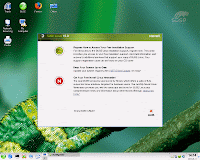
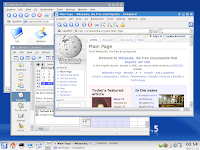
Since the source code of Linux is available for everyone to copy, correct, modify and reproduce, there are many flavors of Linux. They are called distributions. As you can see on the pictures above, they can look very different but keep in mind that that's not always the case. There's no distribution that's considered to be "the best one available"; this is a personal matter. If you have no idea what distribution to pick, you can do a
free online test to see which one's right for you.
Downloading LinuxIf you download a Linux distribution, it is most likely that the file you're downloading has a .iso extension. If you're not familiar with these files: it's like a CD/DVD template. If you import such files into your CD burner, the program will know exactly what to burn on your CD/DVD. This eliminates the need to download and burn every single file on the CD manually. Don't have a CD burner that supports ISOs? No problem, there are plenty of freeware applications that can do this for you. Personally, I prefer
CDBurnerXP Pro.
Installing LinuxHopefully, you've been able to burn the ISO you just downloaded. Now you'll have to reboot your PC and boot from the CD/DVD you just burned. If you're lucky, your BIOS has a boot menu where you can choose from what drive the system should try to boot. More information about booting CDs can be found in your BIOS manual.
 Window managers
KDE and GNOME are what we call "window managers". Depending on which one you use, your desktop, task bar and windows will look and function different. Most graphical Linux distributions come with a customized version of either KDE (screenshot 1) or GNOME (screenshot 2). They can also be installed at the same time as they don't conflict with each other. Again, this is a personal thing; some people prefer KDE, some prefer GNOME. If you like eyecandy and flexibility, I advise you to try KDE. If you'd rather keep it simple, try GNOME instead.
 Software management
Compare this with the Software applet in the Control Panel on Windows. While Windows only maintains a database of what software is installed on your computer, a majority of Linux systems has developed a complete software management system. Imagine: you've just downloaded a new application (on Linux, we call them "packages") When installing a package, your computer unpacks the files, puts them in the right place and - in most cases - creates shortcuts to your newly installed application. But here's the cool part: once there's a new version available for one of your installed applications, your Linux system can download and install it without bothering you at all! Removing a package is also a fully automated process that doesn't require interaction.
Administrators
There are a few things you should know about this:
- On Linux, administrator accounts are known as superusers.
- While you might be able to install certain programs on Windows without administrator rights, normal Linux accounts have less priviledges. That's why Linux is so secure.
- The primary superuser on Linux is called root.
- Every time you try to do something normal users aren't allowed to do, you will be asked for the root password.
- Never use the root account is your primary account.
 The downside: wireless support
If there's one thing that Linux can't do very well, is detecting wireless cards. I've been looking around for years for a way to get wireless access on Linux. This is not Linux' fault. Most wireless card manufacturers simply don't supply Linux drivers with their products so people have to make them by theirselfs. But things are changing. Some time ago, I installed a new version of
Ubuntu on my PC that detected my wireless card without any difficulties at all. If you're using LAN cables to connect to the internet, you're lucky since most of these devices are supported.
Stuck? Don't know how to do something?You're not alone. There are many communities that help hundreds of people every day with their Linux problems. Not every single one of them is as big as that, but you should get a reply to you question within a day on most (popular) forums. Here are some links to communities that might be able to help you with your problem:
General Linux,
[U/Ku/Edu/Xu]buntu,
openSUSE,
Fedora Core.
Labels: basics, download, Fedora, GNOME, install, ISO, KDE, Kubuntu, Linux, openSUSE, package management, packages, software management, Ubuntu, window managers
[Linux] Your personalized home office on a USB drive
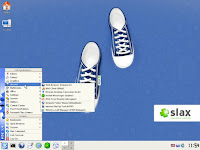
Imagine having your personal home office with your settings, programs and files available no matter what computer your working on
*. Does that sound impossible? Well, it isn't.
Pen Drive Linux has some tutorials on how to install Linux on your USB drive. Whenever you need access to your home office, just plug it into a nearby computer and boot the computer from the USB drive.

You don't need much disk space to do this. 256MB is enough to install
SLAX with a graphical KDE environment on your USB drive and if you don't mind having less eye candy, Linux will require as low as 64MB of disk space (using
Damn Small Linux)! If you have a bigger drive (more than 1GB), you can consider choosing
Knoppix, which comes with even more fun stuff.
Websites: Pen Drive Linux,
Knoppix,
SLAX,
Damn Small Linux
* Unfortunately, some older PCs can't boot from a USB drive. Almost every PC that's less than two years old has this functionality.Labels: Damn Small Linux, home office, KDE, Knoppix, Linux, live, pen drive, personalized, Slax, thumb drive, USB, USB drive
[Linux] Sharing Thunderbird with Windows
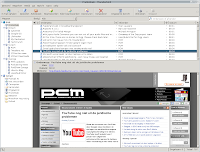
If you switch a lot between Windows and Linux, you probably hate having to delete the same mail on both operating systems. Well, there's a solution for that. You'll have to do some manual work, but once it's set up, it works like a charm.
Here's what you need to do:
- Make sure that you can access your Windows partition from Linux.
- Start Thunderbird in Linux using root privileges*.
- Close the wizard and the program.
- Go to your Windows profile folder and search for prefs.js. Copy that file to your Linux profile folder (it's located in /root/.thunderbird/[something].default).
- Open prefs.js.
- Change the paths in prefs.js to paths that can be accessed from within Linux. Example: C:\Something\ could become /media/windows1/Something/.
- Remove any line that contains [ProfD].
- Reopen Thunderbird using root privileges*.
That's it. After doing this, you should be able to access your Windows Thunderbird mail using Linux. If you find this explanation too difficult, you might want to read the
article source. Although this may also work for Firefox, I haven't tested this.
* You need root privileges because you have to be able to read and write to your Windows profile folder.Labels: Linux, Mozilla, OS, profile, profiles, share, sharing, software, Thunderbird, Windows
[Linux] iTunes, iPods and podcasts

One of the biggest downsides of Linux is, in my opinion, that there's no Linux version for iTunes. Because I have an iPod, I use that program daily. But there are a couple of alternatives that cover its most important features.
 Reading from and writing to iPods
Supported. Since the iPod is 'just' a removable drive with media playback capabilities
(audio, pictures and in some cases video), Linux treats this as a regular removable drive.
Reading your iPod music databaseSupported. Programs such as
amaroK,
Yamipod and
gtkpod can read (and play) music, audiobooks and podcasts.
 Downloading podcasts
Supported. There are plenty of Linux podcatchers available, such as
Yamipod and
gPodder. More information on this can be found
here.
Synchronizing your iPod
Partially supported. Although
amaroK,
Yamipod and
gtkpod can handle the music part, they cannot handle audiobooks and podcasts yet. In some cases, they just drop your podcasts between all your music instead of using the
Podcasts menu like iTunes does.
Plan B: emulating iTunes on Linux. There are some
free and
paid programs that emulate Windows so that you can use Windows programs on Linux. Although these programs are updated regularly, not all Windows programs will work. I don't know if that's the case with iTunes, but I might try it in the future.
Conclusion: Contributors to Linux have filled in the "gap" that iTunes left very well. If you're looking for a tool that has basic iPod support, use
Yamipod. However, it still lacks decent podcast support. If you're more concerned about the looks of the program, try
amaroK.
Labels: Fedora, iTunes, iTunes alternative, Linux, podcast, podcasts, podcatching, SuSE, Ubuntu